Gateway Fleets
Gateways and their licenses are grouped in Fleets to facilitate management. When connecting your licenses you can choose to attach them to an existing Fleet or create a new one. To manage your Fleets:
- Open your Dashboard in your The Things Industries Account.
- Select Gateways tab.
- Select the Gateway Fleet.
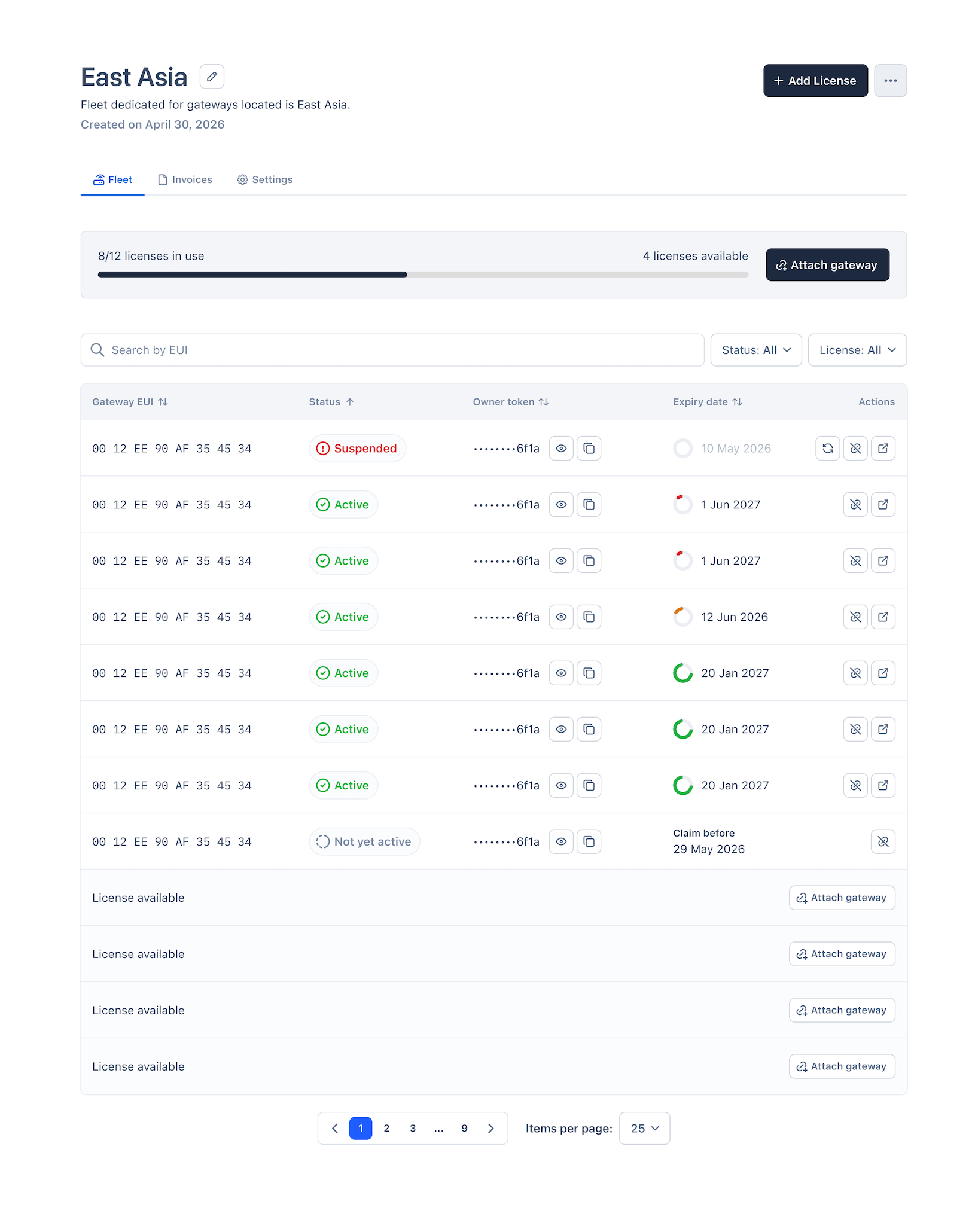
Fleet owner token
Note: The Gateway Owner token should be enough for you to start using the The Things Indoor Gateway Pro in The Things Stack.
You can find the Fleet Owner Token here:
- Open your Dashboard in your The Things Industries Account.
- Select Gateways tab.
- Select the Gateway Fleet.
- Copy the Owner Token from the right hand-side menu, next to Add License button.
or
- Go to Settings tab.
Gateway License
The Things Indoor Gateway Pro operates with a license, which is purchased together with the hardware and prepaid for 1 year. This license is activated after you have claimed the gateway on The Things Stack. When it’s time to renew, you can do it manually or turn on auto-top-up to keep your connection seamless.
I have a 1 year prepaid license
If your The Things Indoor Gateway Pro was purchased with a one-year license included, you will receive an email from The Things Industries to connect your license.
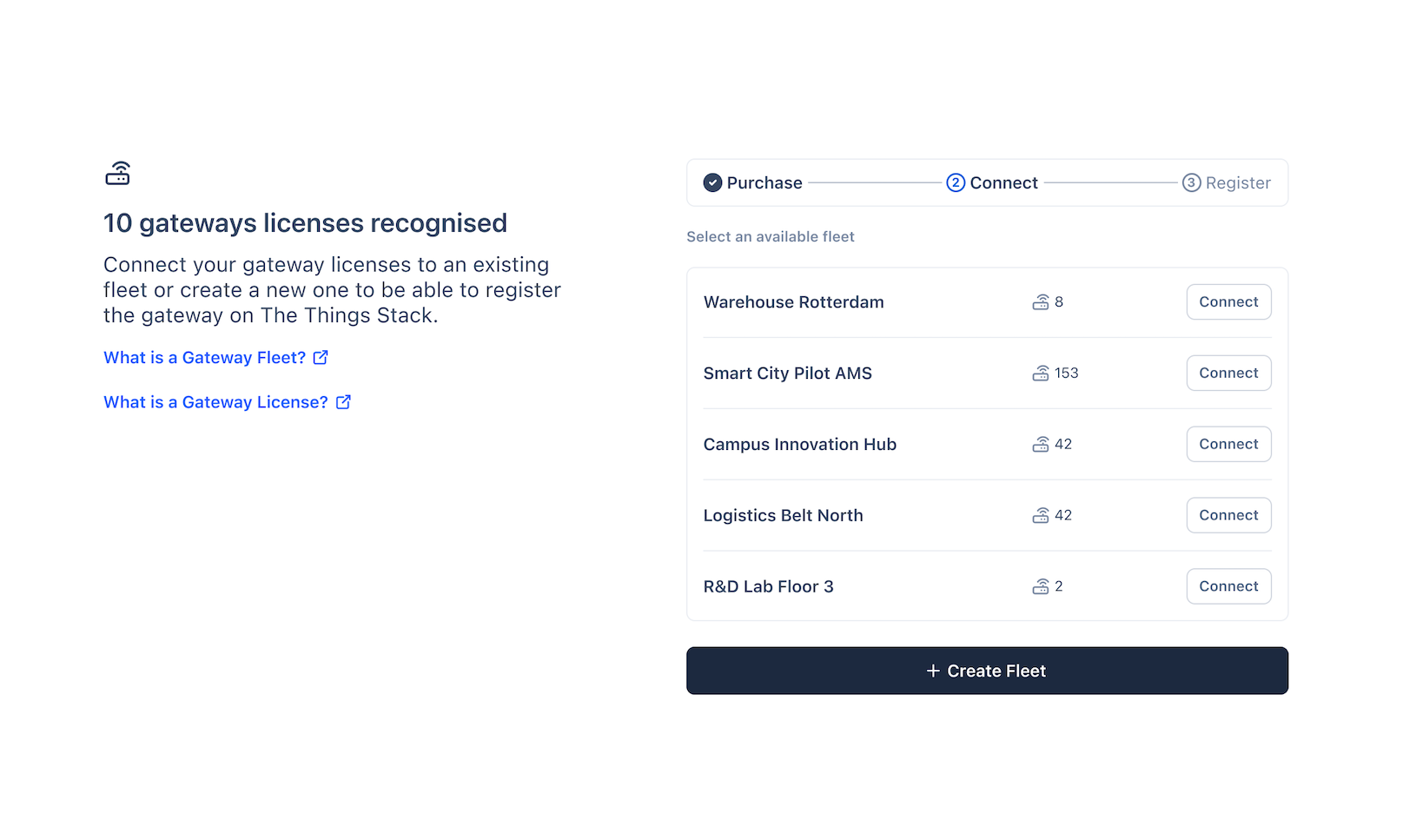
- Open the link in the email and connect your licenses to a Fleet.
- You can connect to an existing fleet or create a new one.
- You can now claim your gateway in The Things Stack.
Warning:
The license needs to be connected before you can claim the gateway on The Things Stack. If you are unsure you connected your license, scan the QR code on the back of the gateway or go to the Gateway Status page to check the status of your license.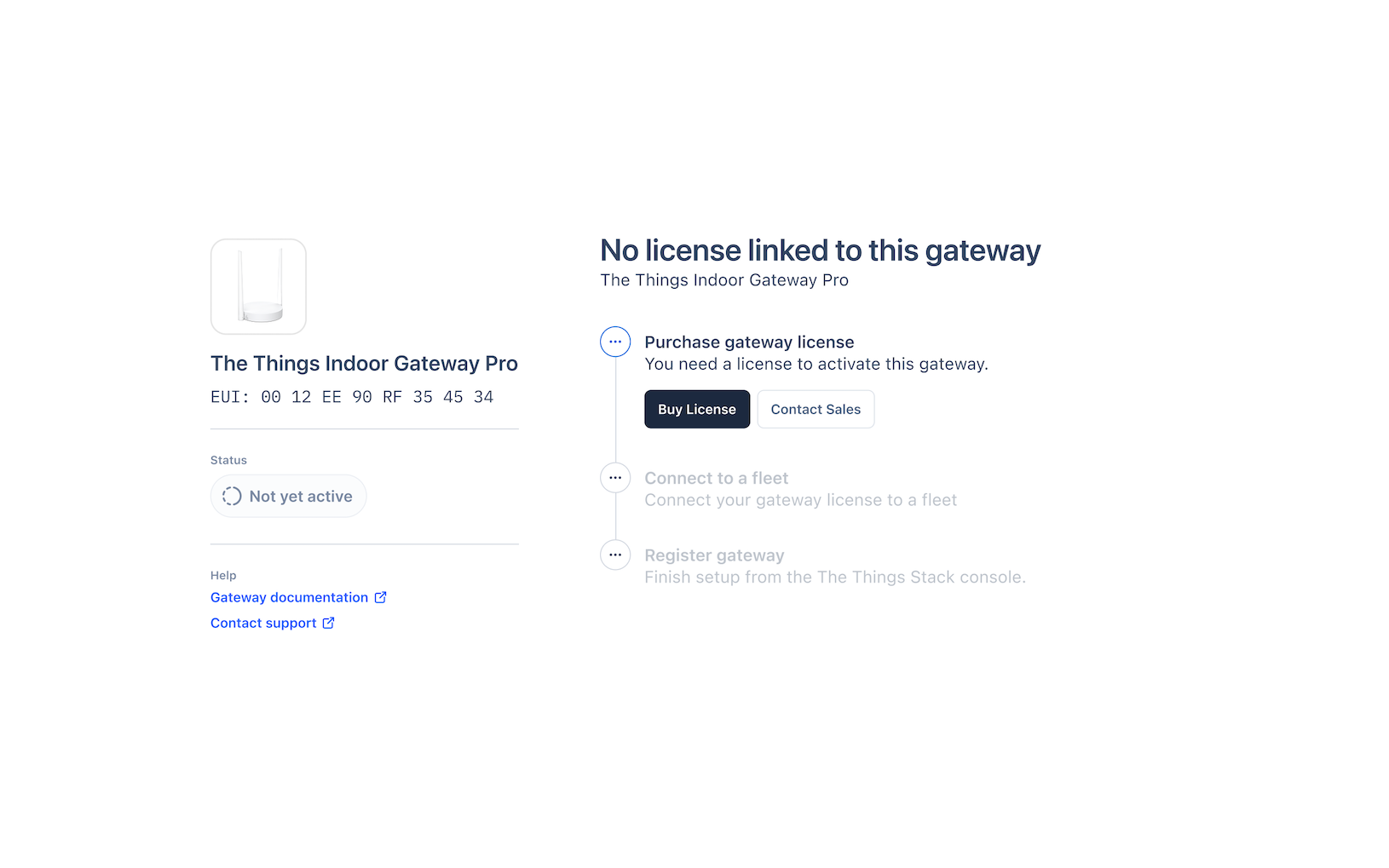
I don’t have a license
If you don’t have a license, scan the QR code on the back of the gateway to find out what to do next or go to the Gateway Status. You can also contact support at support@thethingsindustries.com for assistance.
Renew License
Each gateway license is valid for one year after activation. When a license expires, the associated gateway will stop forwarding traffic until the license is renewed.
To renew your license:
- Open your Dashboard in your The Things Industries Account.
- Select Gateways tab.
- Select your Gateway Fleet.
- Check which licenses need to be renewed.
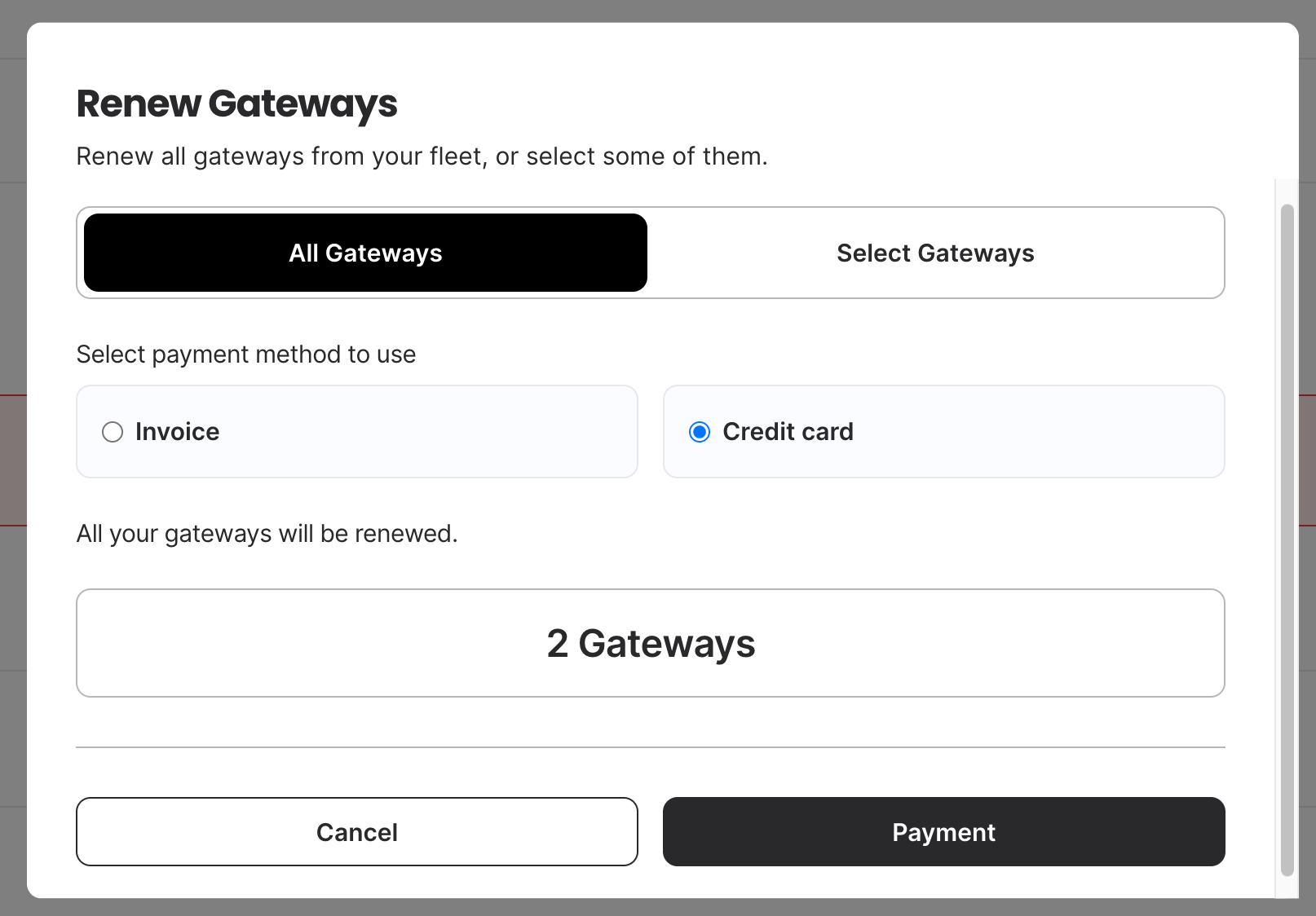
From your Gateway Fleet page, you can renew:
- Individual licenses, or
- All expired licenses in the fleet at once.
Renewal reminders: You’ll receive email notifications 30 days and 1 day before your license expires to ensure continuous service.
Auto renewal
Auto renewal automatically renews your gateway licenses.
- When auto renewal is active, the system will automatically add one more year to any licenses that expired in the last 24 hours.
- The renewal will use your selected payment method (credit card or invoice).
- You’ll receive a confirmation once the renewal is successful.
If auto renewal is inactive, you can activate it by clicking the Update payment method button on the gateway fleet’s page.
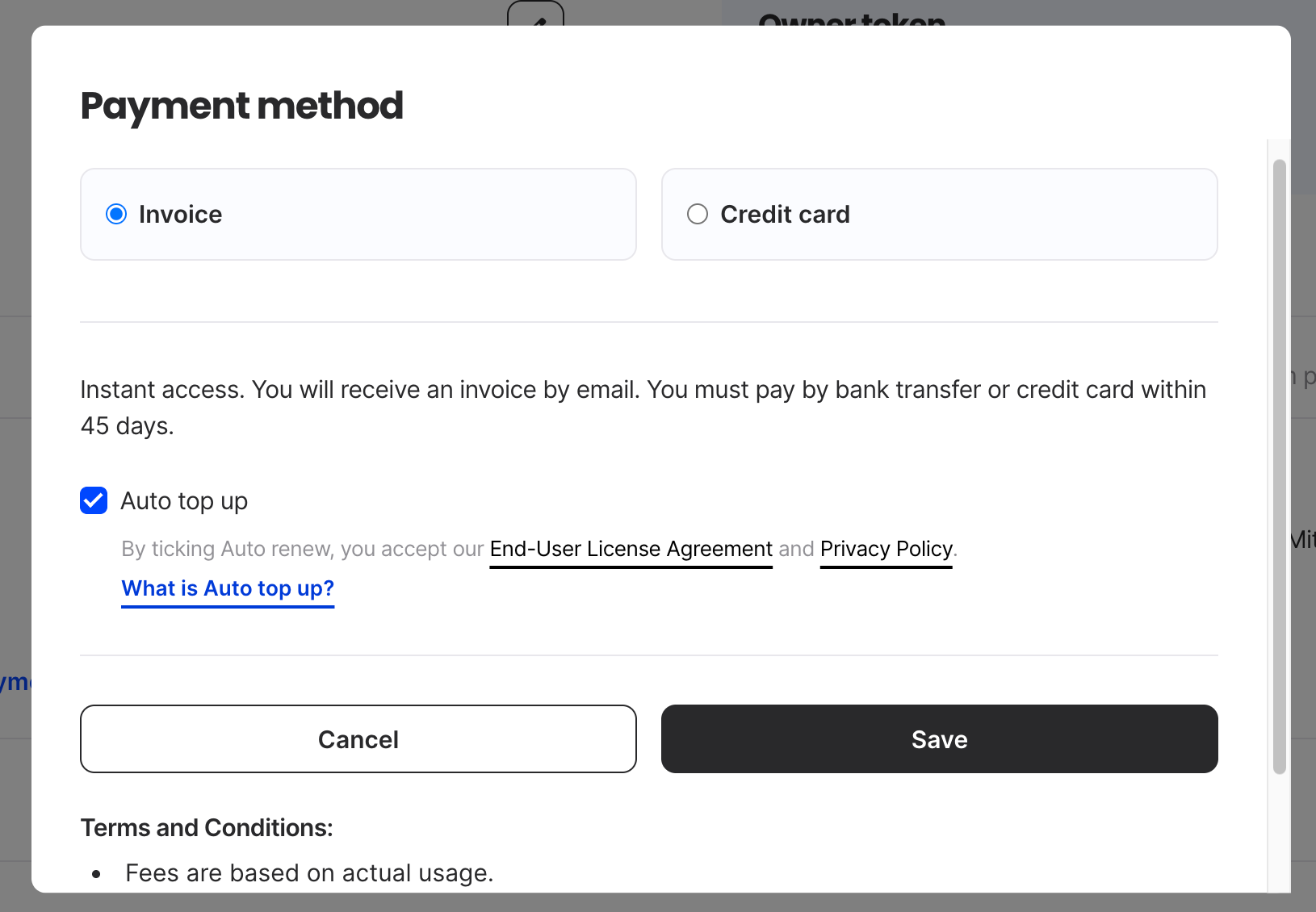
Tip: Turn on Auto Renewal to keep your gateways active without manual renewals.
License troubleshooting
If the Gateways were not connected to your fleet even after you’ve completed all the steps and checked your Gateway Status page, try one of the following:
- Attach each gateway manually in the Fleet Overview.
- Try using the fleet owner token to claim your gateways in The Things Stack.
- Contact support at support@thethingsindustries.com.
Admin Changelog
01/09/2026
- Rename Gateway Slot to Gateway License
- Add Attach Gateway to Gateway License to Gateway Fleet overview
- Add Add License to Gateway Fleet overview
- Update Gateway Fleet overview UI
- Fix Gateway License extend checkout error
- Add Gateway Status page
- Update Gateway QR code redirect to Gateway Status page
- Improve Gateway License assignment page
01/01/2026
- Add Gateway Fleets and Gateway Slots