MQTT Client
This section explains how to configure a Pub/Sub integration using the built-in MQTT client.
Creating a Pub/Sub integration with the built in MQTT client requires you to have an MQTT server running with an available endpoint. Mosquitto is a popular open source MQTT server you may use, but The Things Stack MQTT client works with any other MQTT server too.
No API key is needed for Pub/Sub messaging. All messages received by the Application Server are assumed to be authorized, so be sure to configure appropriate security on your MQTT server.
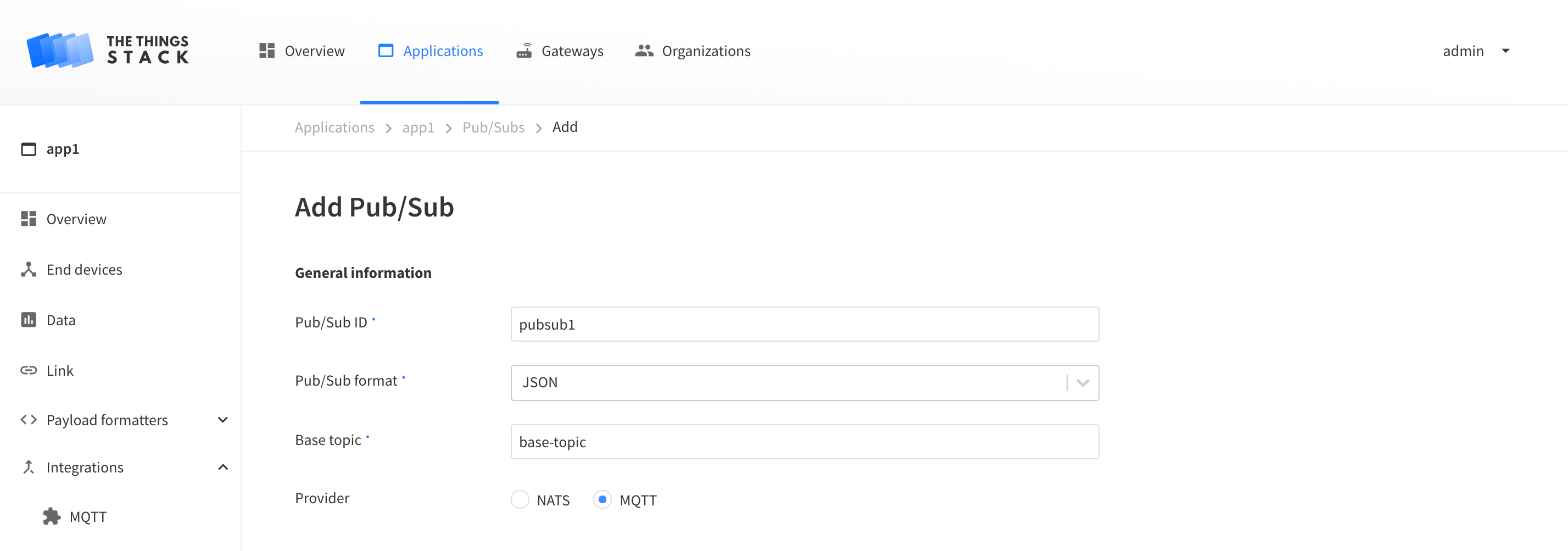
In your application, select the Pub/Subs submenu from the Integrations side menu. Clicking on the + Add Pub/Sub button will open the Pub/Sub creation screen.
Give your Pub/Sub an ID, choose a Pub/Sub format, and enter a Base topic to subscribe or publish to.
Select MQTT as provider.
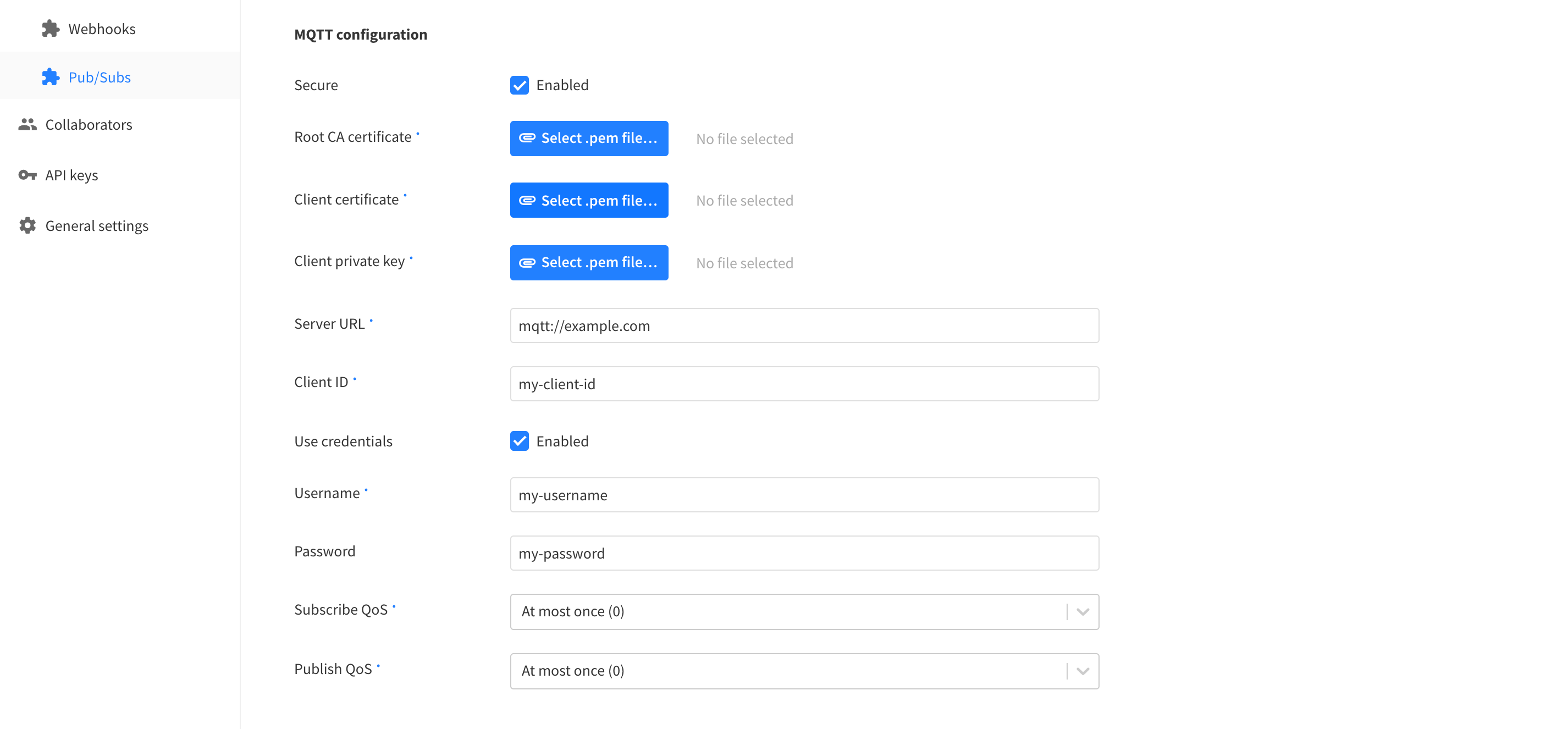
If using client certificates, enable Secure. You will be asked to upload the Root CA certificate, the Client certificate, and the Client private key.
Enter the endpoint of the MQTT server in the Server URL field, including the protocol and port.
Enter the Client ID the Application Server should use to authenticate.
Enable Use credentials if your MQTT server uses password authentication. Enter the username and password the Application Server should authenticate with.
Message Types
The Application Server can be configured to publish and subscribe to topics for individual events. See Message Types for more information about events and topics.
After enabling events, click the Add Pub/Sub button to enable the integration.
Subscribing to Upstream Traffic
The Application Server publishes messages for any enabled events. For example, when a device sends an uplink, an uplink message is published. To view these using a mosquitto_sub client connected to your MQTT server:
mosquitto_sub -h <server_hostname> -p <port> -t '#' -v
# base-topic/uplink {"end_device_ids":{"device_id":"dev1","application_ids":{"application_id":"app1"}},"received_at":"2020-05-12T12:23:07.087614Z","uplink_message":{"session_key_id":"AXIDznz4bnQqtW8T3NsIVg==","f_port":1,"f_cnt":327,"frm_payload":"AQ=="}}
Scheduling Downlinks
You can schedule downlink messages by publishing to a topic. For example, using a mosquitto_pub client connected to your MQTT server:
mosquitto_pub -h <server_hostname> -p <port> -t 'base-topic/push-subtopic' -m '{"end_device_ids":{"device_id":"dev1","application_ids":{"application_id":"app1"}},"downlinks":[{"f_port":1,"frm_payload":"AA==","priority":"NORMAL"}]}'
will push a downlink to the end device dev1 of the application app1 with a base64 encoded payload of AA==, if push-subtopicis configured as the Sub topic for Downlink queue push.
This will also result in the following message being published by the Application Server:
# Received on [base-topic/downlink-queued-subtopic] :
'{"end_device_ids":{"device_id":"dev1","application_ids":{"application_id":"app1"}},"correlation_ids":["as:downlink:01E84EAR5B4NM229NDKE0004J6"],"downlink_queued":{"f_port":1,"frm_payload":"AA==","priority":"NORMAL","correlation_ids":["as:downlink:01E84EAR5B4NM229NDKE0004J6"]}}'